If you want to monetise your app, video or website professionally, you need more than basic ad placement. Google Ad Manager gives publishers full control over how they manage, serve, track, and optimise adverts across websites and apps. It combines advanced ad serving technology with powerful reporting tools, making it suitable for growing blogs, media platforms, and large publishers.
In this guide, you will learn how to create an account, understand its core features, and decide whether it fits your publishing strategy.
Requirements to Signup for Google Ad Manager Account
You must the following information ready to qualify you for Ad Manager account:
- A Google Gmail Account
- An approved Google AdSense Account
- A functioning App or Website
Step-by-step Guide to Create a Google Ad Manager Account
Step 1: Go to Google Ad Manager official website
You can search for the keyword “Ad Manager” on Google.com to get the official website or simply click on the link we have provided to redirect you to the official page now. Google Ad Manager Website here >>
Step 2: Click on “Get Started”

Now you’re on the page, make sure you are logged in (on separate tab) with the email you will be using to sign up for a new Google Ad Manager account. This makes your process faster.
Step 3: Select the option that best describe your business
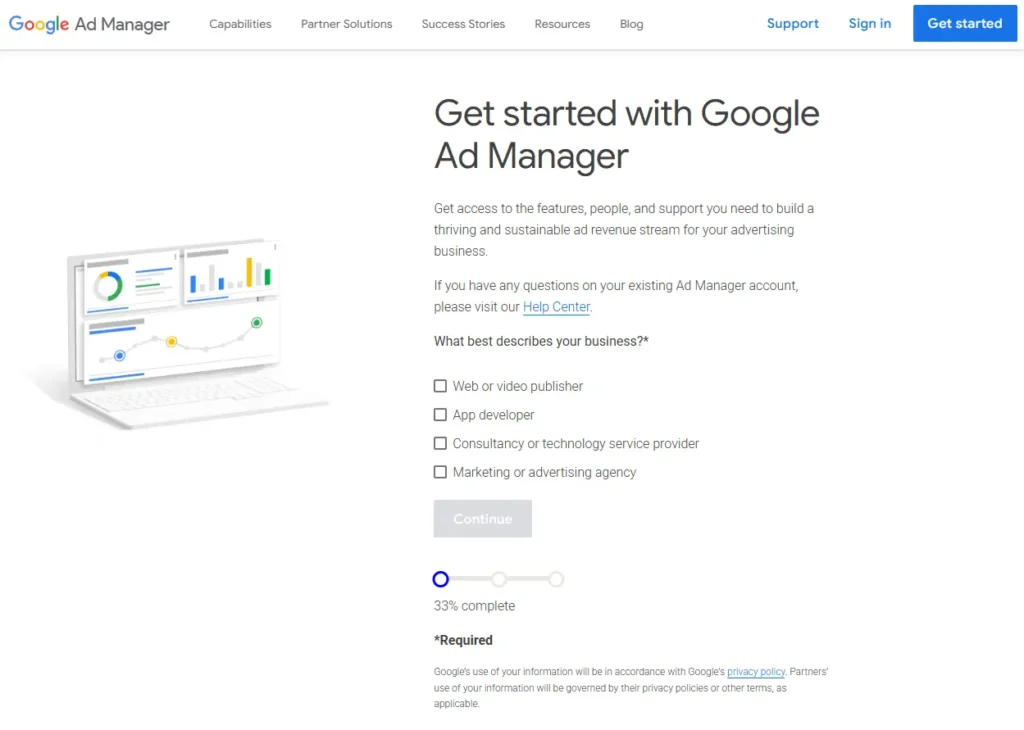
There are three steps to go through to complete the Ad Manager account sign up process. The first step is about selecting the description of your business.
Then click on the “Continue” button to go to the next form.
Step 4: Select the option that your business
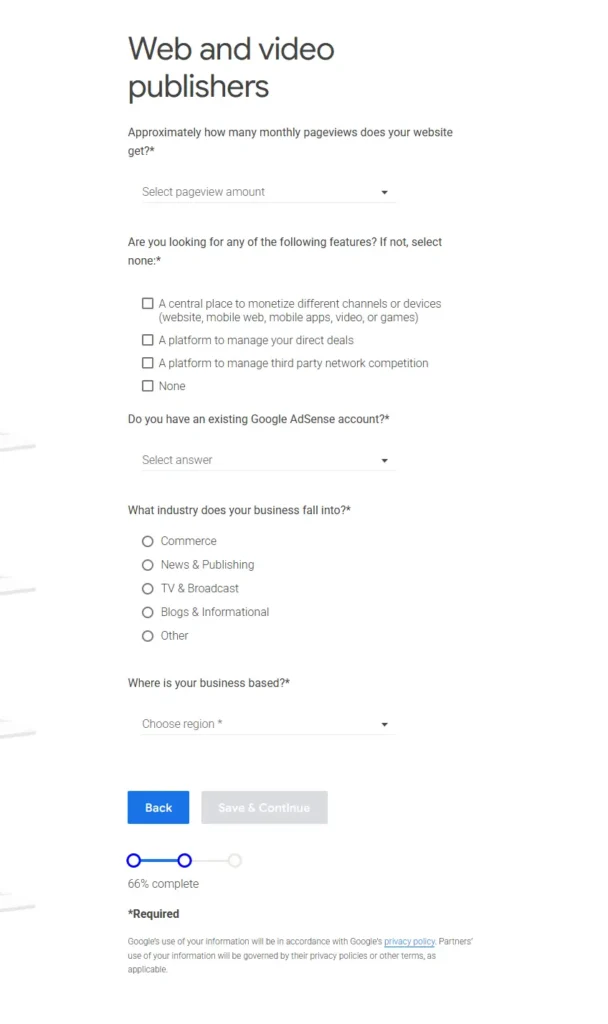
Notwithstanding the fact that our platform is a web and video publisher (which was the option we selected initially), you should also see similar questionaira like this.
The first section is selecting your how many pageview you get. It is ranged. So select the one your business fall in.
The second section o this page is for you to select/check the features you want. I would advice that you select all first features (but leave the “None” unchceked/unselected.
the third section is asking if you do have an approved AdSense account. remember, I had already told you the requirements to apply for the Google Ad Manager account – Google AdSense is inclusive to the the list. So select “Yes” as you already have.
The fourth section is requesting that you select the business area of specialisation. It could be Commerce, News & publishing, TV & Broadcast, Blog & informational. But select the “Others” if the industry you business falls in isn’t mentioned on the list.
Then go through the information you filled out and ensure everything is correct, then click on “Save & Continue“.
Step 5: Submit your ad manager form
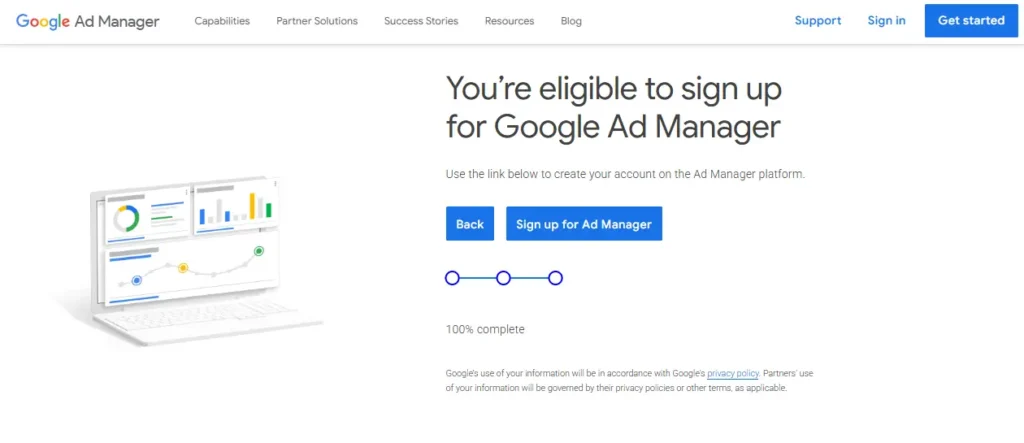
At this point, by doing everything correctly, you should get a screen letting you know you’re eligible for the Google Ad manager account. Click on the “Sign up for Ad Manager” to submit your application
Step 6: Setup your email notification and time zone
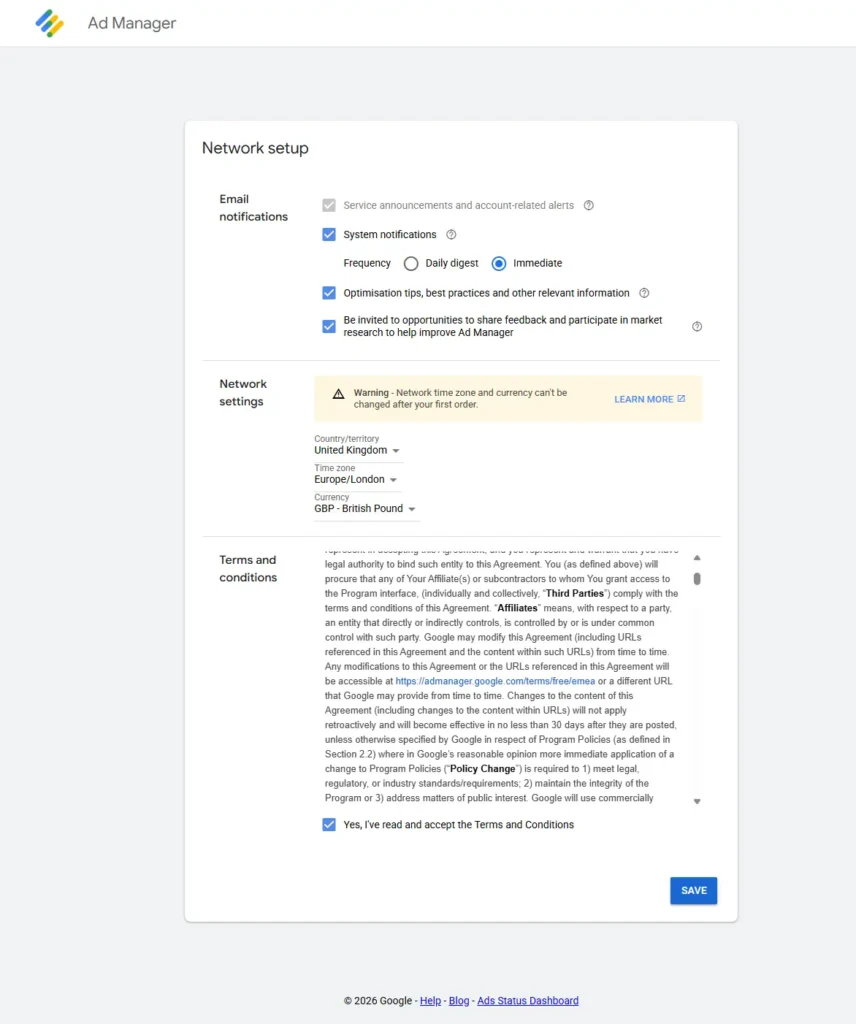
Select your AdSense account county, time Zone and the currency. Doing exactly will display the same currecy of your AdSense account on your Ad manager account. Please note that this can’t be edited after summission.
Then check the box to accept the Google’s Ad manager account terms and conditions, and click on “Save“.
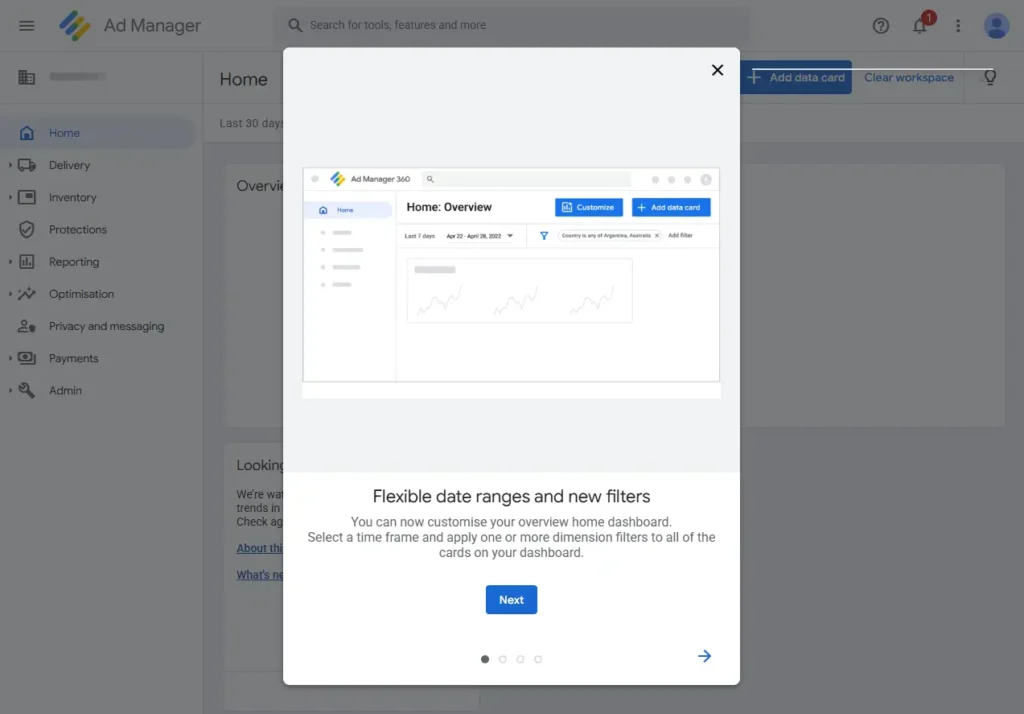
Congratulations! You have just created a new Google Ad manager account today.
Now wait for the page to load your new Ad manager account dashboard.
Locating your Google Ad Manager Account ID
The Ad Manager account ID number is usually 11 digits, for example; “12345678901”. You can locate your Google Ad manager account ID in several sections/locations on your account. These are methods to find your Ad Manager ID account.
Method 1: From Your Account dashboard URL
After a successful login into your Google Ad manager account, look at the URL structure, your Ad manager account ID comes next after the official URL. This is also similar with the Google AdSense account Pub-ID number location.
For example: https://admanager.google.com/12345678901
The number after the forward-slash is your ID number.
Method 2: From Your Account dashboard homepage
Look at the top-left corner of your account dashboard page, you will find your account ID number. It is also the same ID on the URL structure.
Method 3: From Your Ad manager account Admin area
Navigate to “Admin” >> then click on “Global Settings” >> under the “Network Settings” tab you will see your Ad manager ID number. You can also see it is the same digits when you match it with the ID on your URL structure and on the homepage screen (at the top-left corner). On here it is called “Network Code“.
Functions and Advantages of Using Google Ad Manager
1. Centralised Ad Management:
Google Ad Manager allows you to control all your advertising inventory from one dashboard. You can manage direct deals, programmatic demand, and multiple ad networks in a single interface.
2. Advanced Ad Serving Technology:
It delivers adverts based on defined rules such as geography, device type, audience segment, and time. This precision improves fill rates and increases revenue potential.
3. Inventory Control:
You can create ad units, placements, and custom targeting rules. This structure helps you organise your website inventory properly and maximise high-value positions.
4. Real-Time Reporting and Analytics:
The platform provides detailed performance reports. You can track impressions, clicks, revenue, CPM, and other metrics to guide optimisation decisions.
5. Support for Direct Sales:
If you work with advertisers directly, Google Ad Manager lets you create line items, set pricing rules, and control campaign delivery without relying solely on automated networks.
6. Programmatic Integration:
It connects with demand sources such as programmatic buyers and exchanges. This competition between buyers can increase your overall ad yield.
7. Scalability:
Small publishers can start with the free version, while larger publishers can upgrade to the premium version as traffic grows. The system supports long-term growth.
Difference Between Google Ad Manager and Google AdSense
Both platforms help publishers monetise their content, but they serve different purposes and suit different levels of traffic and operational complexity. Google AdSense focuses on simplicity and automation, while Google Ad Manager provides advanced control and flexibility for publishers who want to manage multiple demand sources and direct campaigns.
| Feature | Google Ad Manager | Google AdSense |
|---|---|---|
| Primary Purpose | Advanced ad serving and inventory management | Simple automated ad monetisation |
| Best For | Medium to large publishers | Small to medium publishers |
| Control Level | High control over targeting, pricing, and delivery | Limited control, mostly automated |
| Direct Advertiser Deals | Supported | Not supported |
| Multiple Ad Networks | Yes | No |
| Technical Complexity | Requires setup knowledge | Easy to set up |
| Revenue Optimisation | Advanced yield management tools | Automatic optimisation by Google |
If your blog grows beyond basic monetisation and you want direct advertiser relationships, Google Ad Manager offers more strategic control. If you prefer simplicity and minimal setup, Google AdSense remains a suitable starting point.
I believe you shouldn’t have any challenges after following these steps. But use the comment box below just in case you do.
Also, let us know what other information you would want us to cover (write about). We are always ready to respond.
Feel free to always recommend and share this page to other new content content and app creators who want to learn how to locate their ID number or create a new Ad manager account fast.